
AI YouTube Shorts generator: which ones make a postable Short
YouTube caps Shorts at three minutes. I measured four AI shorts generators on one 35-minute file, and six of one tool's eight clips were too long to post.
Contents
The short answer
YouTube caps a Short at three minutes. That single number decides more about which AI clipping tool suits you than anything on the tools’ own feature lists, and only one of the four I measured falls foul of it.
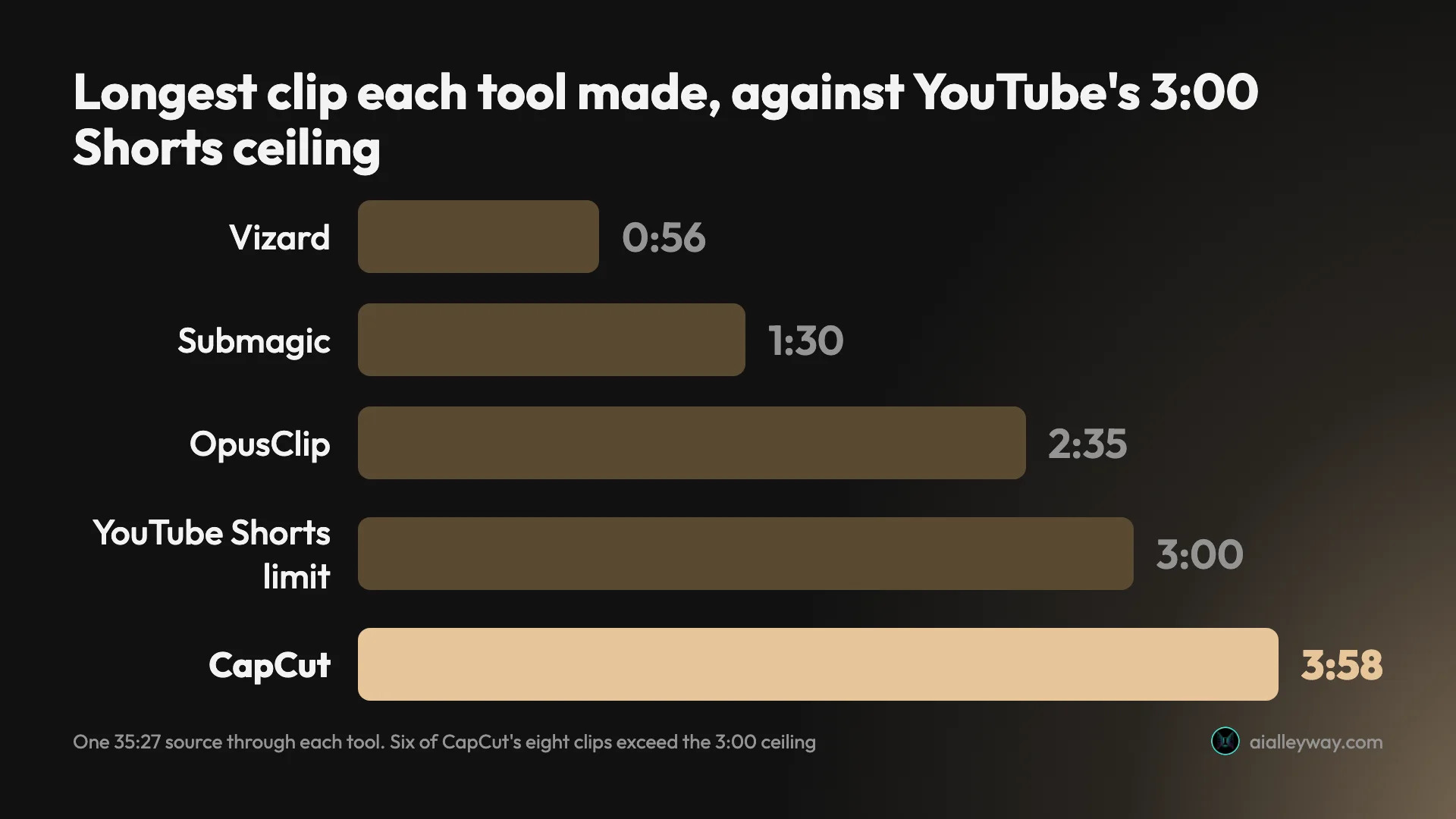
I put the same 35-minute conference panel through four of them. OpusClip came back with 32 clips between 21 seconds and 2:35, Submagic with 31 between 0:32 and 1:30, and Vizard delivered 10 of the 30 it said it found, running 0:32 to 0:56. On length, everything those three made clears the ceiling with no editing at all — though Submagic’s clips were only ever on screen, since its trial hands over no file.
CapCut returned eight clips running 1:26 to 3:58, and six of the eight are longer than three minutes. CapCut is also the only one of the four whose free export comes back clean, at 1080×1920 with no watermark. The best AI clipping tool ranks the same four runs on what they found rather than on what will post. The best free file in this category is in the wrong shape for the format this page is about.
What does YouTube require of a Short?
Two rules, both from YouTube’s own help page, and both worth reading before you pick a tool.
The first is length. YouTube’s own help page defines a Short as one of the “short-form videos that are up to 3 minutes long”. On that definition a clip of 3:04 is not a long Short, it is an ordinary upload. Whatever a tool’s marketing says about “shorts”, the only question that matters is whether the file it hands you is under three minutes.
The second is resolution, and it cuts the other way from what the pricing pages imply. YouTube states you can upload “Short videos with a maximum resolution of 1080p”. What happens to a 4K master beyond that ceiling the page does not say; what it will not do is publish above 1080p. That makes 4K export — which Vizard sells on Creator and Business, and which OpusClip announces for Pro — worth nothing for this particular destination.
What each tool returned, measured on one file
Every figure below comes from the same source: a 35 minute 27 second World Economic Forum panel, “An Honest Conversation on AI and Humanity”, published under a Creative Commons Attribution licence.
| Tool | Clips returned | Length range | Fit under 3:00 | Cost for the job |
|---|---|---|---|---|
| OpusClip | 32 | 0:21 to 2:35 | all 32 | $2.03, Pro annual |
| Submagic | 31 | 0:32 to 1:30 | all 31 | $1.53, Pro annual |
| Vizard | 10 delivered of 30 found | 0:32 to 0:56 | all 10 | $0.85, Creator annual |
| CapCut | 8 | 1:26 to 3:58 | two of eight | $0, free plan |
| Klap | none; its trial paywalls the generate step | n/a | n/a | untested |
Three of the four are comfortably inside the ceiling, and two of those never came close to it: Submagic’s longest was 1:30 and Vizard’s was 56 seconds. If your only concern is that the file will post, any of the three is safe without you checking a single duration.
What the files themselves look like
Length is the rule that disqualifies a clip, but it is not the only thing that decides whether you would post it.
Every file I pulled was 9:16 vertical with captions burned in, which is the format’s default and none of the tools made me ask for it. Submagic I cannot speak for at file level, because its trial exports nothing.
The resolution and the branding are where they separate. CapCut’s eight came back at 1080×1920, 30 frames a second, and I probed every one of them with ffprobe rather than trusting the preview: no watermark on any frame I sampled. OpusClip’s were also 1080×1920, at 7.3 to 9.9 Mbps across the six I measured, but the account I ran was a Pro trial and every one of the six files whose frames I inspected carried a Created with OpusClip mark burned into the top-left. Vizard’s free export is 720×1280 with its own watermark in the corner.
| Tool | Export I pulled | Watermark | Inside YouTube’s 1080p ceiling? |
|---|---|---|---|
| CapCut (free) | 1080×1920, 30fps | none | yes, at the ceiling |
| OpusClip (Pro trial) | 1080×1920, 7.3–9.9 Mbps | burned top-left | yes, at the ceiling |
| Vizard (free) | 720×1280 | burned corner | yes, below it |
| Submagic (trial) | no export at all | n/a | n/a |
That 720p matters more for Shorts than it does elsewhere. YouTube’s ceiling is 1080p, so Vizard’s free files sit below the limit rather than above it, and the difference is visible on a phone. Creator lists 4K export with no watermark, which is how you get an unmarked 1080p file out of it and the honest argument for Vizard’s $14.50 a month: not the 4K the pricing page leads with, which is above the ceiling YouTube publishes at, but getting to 1080p without a mark on it.
The reframe is the other thing worth looking at, because a conference panel is the hard case for vertical crop: the speaker moves and the stage is wide. Across all eight CapCut downloads the crop followed the active speaker rather than sitting locked on the centre of the stage. OpusClip’s tracked the talker too, on the clips I played for its review. Vizard took a different approach on the one file I pulled, opening on a stacked split — a wide two-shot above, the speaker below — rather than a single tracked crop.
Submagic is the gap in this comparison and the gap is deliberate on their side, not mine: its trial refuses to export at all, so I can describe the 31 clips it showed me and nothing about the files they would have become.
The clip-by-clip picture, where it matters
CapCut’s eight, in the order it returned them, with the tag it attached to each:
| # | Length | Tag | Source range | Postable as a Short? |
|---|---|---|---|---|
| 1 | 3:56 | Well-structured | 15:39–19:35 | No |
| 2 | 3:58 | Hook | 02:48–06:47 | No |
| 3 | 3:14 | Well-structured | 20:57–24:12 | No |
| 4 | 3:57 | Trending | 28:33–32:31 | No |
| 5 | 2:14 | none | 13:24–15:38 | Yes |
| 6 | 1:26 | none | 33:13–34:40 | Yes |
| 7 | 3:20 | none | 10:02–13:22 | No |
| 8 | 3:56 | none | 24:12–28:09 | No |
Read the source ranges and the chaptering is obvious: they run front to back, they do not overlap, and together they cover nearly three-quarters of the panel. Four of the eight carry a qualitative tag and four carry nothing at all, which is the closest CapCut comes to ranking them.
OpusClip’s output sat at the other end. The eight files I pulled ran 0:21, 0:24, 0:34, 0:40, 0:49, 0:52, 1:46 and 1:48 — every one of them a Short by YouTube’s definition, and six of the eight under a minute.
Why do CapCut’s clips run long?
It is not a bug, and it is worth understanding before you rule the tool out. On Auto, the setting the screen opens on, CapCut’s eight clips covered 73.6% of the entire recording, in sequence and without overlapping. Auto divided the panel into chapters rather than picking moments out of it, and chapters of a 35-minute talk are naturally three to four minutes long.
Which means part of the length problem is one I created by handing it a long file. I ran Auto again over a 12-minute cut of the same panel and it returned six clips of 1:09 to 2:33 — every one of them inside YouTube’s ceiling. How long Auto’s clips run is a function of how long the source is, so the six-of-eight failure above belongs to the 35-minute recording as much as to the tool.
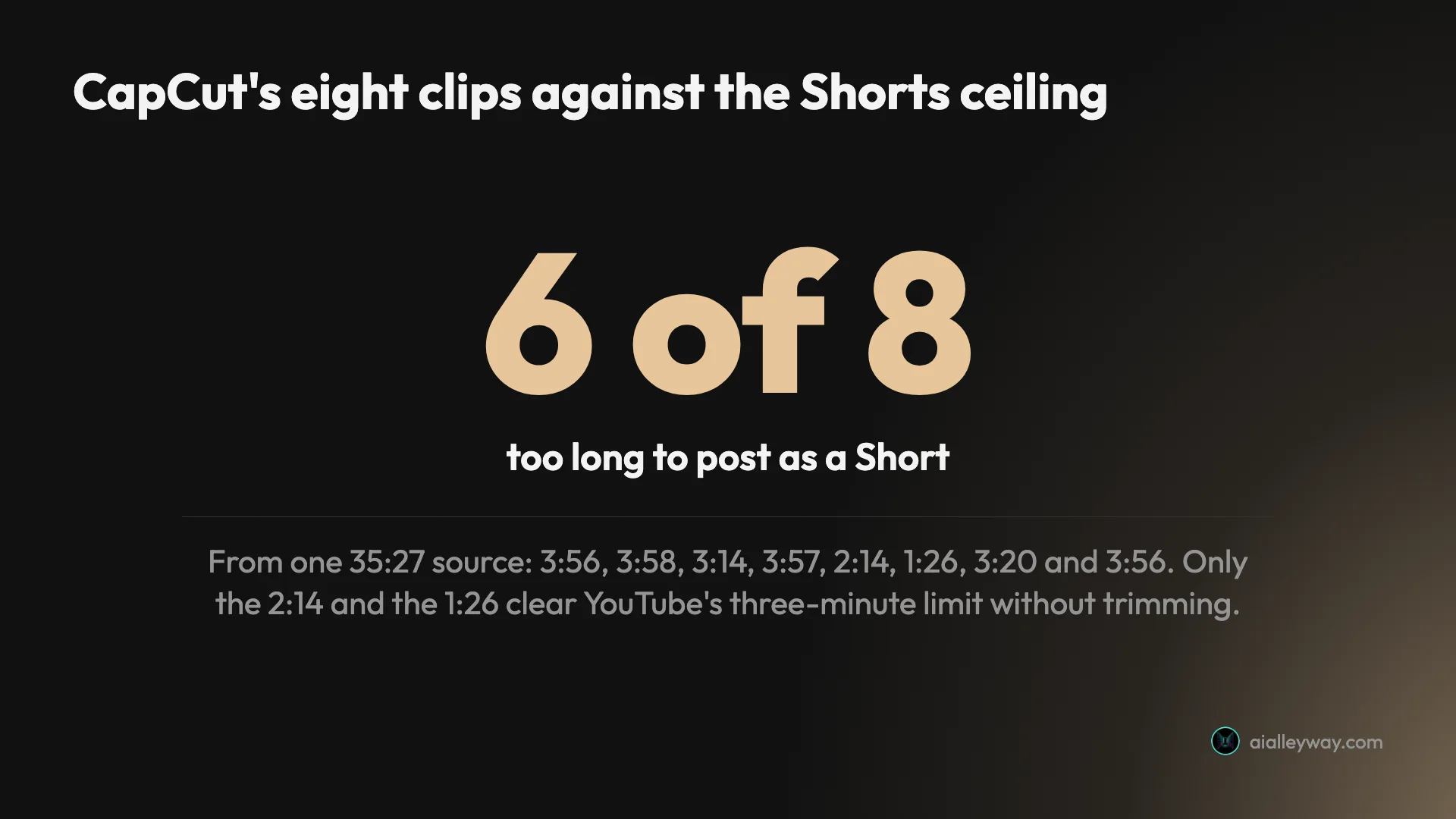
The full list of what it returned: 3:56, 3:58, 3:14, 3:57, 2:14, 1:26, 3:20 and 3:56. Only the 2:14 and the 1:26 are postable as Shorts as they stand. The rest need cutting down, which you can do in CapCut itself, whose full timeline editor you get for nothing — but that is work the tool was supposed to save you.
The other three picked ranked candidate moments, overlapping and out of order, which is the shape the Shorts format wants. That difference matters more for this job than any score or caption style, and the step-by-step CapCut walkthrough shows where the duration setting sits if you want to try steering it.
Why the ceiling is the right first filter
It is tempting to start from clip counts, because that is the number every one of these tools leads with. Thirty-two clips sounds like more value than eight. For this format it is the wrong first question, because a clip that will not post is worth nothing however good it is.
Work it through on the numbers above. OpusClip’s 32 are all postable, so the yield from one 35-minute upload is 32 candidates. CapCut’s eight include two that post as they stand, so the same source yields two candidates plus six files that each need a trim before they can go anywhere. That is not a small difference in convenience — it is the difference between reviewing output and editing it, which is the work the tool was bought to remove.
The second filter is what you can publish without paying, and it inverts the first. CapCut’s two compliant clips arrive clean at 1080p on a free account. OpusClip’s 32 arrive watermarked unless you pay, and on the free tier they stop being exportable after three days. So the fastest route to one publishable Short costs nothing and comes from the tool that is worst at the format, and the fastest route to thirty-two costs $2.03.
Neither of those is a trap, but they are the two shapes of this decision, and no feature list on any of the four vendors’ sites puts them side by side.
Which of them will post the Short for you?
Getting a compliant file is half the job. Uploading it is the other half, and here the free tier does unusually well.
CapCut lists YouTube Shorts as a destination in its export dialog, next to TikTok, TikTok Ads Manager, plain YouTube, a Facebook Page and Instagram Reels, with scheduling badged free. I saw this in the app on a free account rather than reading it off a page.
OpusClip posts to YouTube Shorts from the $15 Starter plan, and its social media scheduler — which adds LinkedIn, Facebook and X — arrives on Pro.
Submagic sells “Publish & analytics for social” on every paid plan, with one publishing profile per platform and three on Business, and lists a YouTube Shorts Maker among its product features. Its trial cannot export a file at all, so none of that is reachable without paying.
Vizard is the one I cannot give you a clean answer on. It sells social account management at 1, 6 and 20 accounts across its three tiers and scheduling on the paid ones, but its pricing page does not name YouTube Shorts anywhere. Everything else here I can state from a page or from the app; this one I would check against your own account before relying on it.
What do the free tiers give you?
Briefly, because the free AI clip generator comparison measures this properly.
CapCut’s free plan is the only one whose export you could publish untouched: 1080×1920, 30fps, no watermark on any of the eight files I pulled and probed. It meters 60 source minutes a month for clipping, which is one long recording.
OpusClip and Vizard both renew 60 credits a month, and both watermark free exports. Vizard’s free export also drops to 720p — still inside YouTube’s ceiling, but visibly softer on a phone than the 1080p the other free tier gives you. Submagic has no free plan, only a 15-credit trial that refuses to export.
So the free choice is between a publishable file in the wrong shape, and the right shape with a mark on it.
How many clips should you expect, and what does that cost?
One 35-minute source produced between 8 and 32 clips depending on which tool saw it. OpusClip and Submagic landed within one clip of each other, at roughly one clip per 66 and 69 seconds of source. Vizard found 30 and released 10 on the free plan, selling the rest. CapCut returned 8.
Cost per job at the annual rate of the tier I priced each one on — Pro for OpusClip and Submagic, Creator for Vizard, free for CapCut:
| Tool | Clips returned | Postable as Shorts | Cost for the job | Cost per postable clip |
|---|---|---|---|---|
| OpusClip | 32 | 32 | $2.03 | 6¢ |
| Submagic | 31 | 31 | $1.53 | 5¢ |
| Vizard | 10 delivered of 30 found | 10 | $0.85 | 9¢ |
| CapCut | 8 | 2 | $0 | $0 |
Those per-clip figures are the cost of the whole job divided by what you could actually post from it, which is a different and more useful number than cost per clip returned. Vizard’s nine cents is the paid Creator rate divided by the ten clips its free plan released, and what Creator delivers from the same file is something I never established. The best AI clipping tool sets those results against each other properly, including what the scores mean and which tool found the most usable material.
If you want clips under sixty seconds
Nothing here forces that on you. All four expose a length control, and I left every one on its default so the runs stayed comparable — which turns out to explain a good deal of what came back.
The defaults are where the difference starts. OpusClip’s clip length sits on “Auto (0m–3m)”, a range that stops at three minutes, which is the likeliest reason all 32 of its clips cleared YouTube’s ceiling. Vizard’s sits on “Any length” and it still returned nothing past 0:56. Submagic’s Clip duration sits on Auto, and it ran to 1:30. CapCut’s offers four settings, and everything above came back on the first of them:
| Setting | What I ran | What it returned |
|---|---|---|
| Auto | yes, on the 35-minute file — the run above | 8 clips, 1:26 to 3:58 |
| Under 60 seconds | yes, separately, on a 12-minute cut | 3 clips, 1:04 to 1:08 — none under a minute |
| 60 to 90 seconds | no | untested |
| 90 seconds to 3 minutes | no | untested |
Auto is what produced the chapters. The under-60s preset I ran separately, on the first 12 minutes of the same panel, because the free meter would not cover the full recording twice. Its three clips are therefore not a like-for-like count against Auto’s eight.
What it does settle is the length question, and the answer is no: 1:04, 1:05 and 1:08, all over the minute the button names. On that shorter source it did stop the chaptering, dropping from 88.3% of the footage on Auto to 27.4%. So the setting built for short-form still will not hand you a sub-minute file, and the CapCut walkthrough has both runs side by side. The 60-to-90s and 90s-to-3m buttons I have not run.
Vizard needs no setting in practice: nothing it delivered passed 0:56, on a control left at “Any length”. Submagic ran to 1:30, so an under-60s constraint would bite there too, and I did not record what its Clip duration control offers besides Auto. OpusClip sat in between: six of the eight files I pulled were under a minute, the longest of them 1:48, and the longest of all 32 it returned was 2:35.
What none of this tells you
Every measurement here came from one multi-speaker conference panel, which is the harder case for this kind of tool. A solo talking head or a two-mic interview may well produce different lengths and better cuts, and I have no data on either.
Nor does any of it tell you whether the clips are good. Not one of the four ever marked its own output as weak: OpusClip’s 32 scored 80 to 99, Submagic’s 31 scored 90 to 97, and four of Vizard’s ten tied at 10.0.
Vizard’s range is not comparable like for like, because those ten are the top of thirty it found and the other twenty were never shown. A scale that never drops is sorting clips against each other rather than telling you which to post, so the watching is still yours to do — and for Shorts the first two seconds decide it, which no score on any of these dashboards is measuring.
One workflow detail worth knowing before you rely on a free tier: OpusClip’s free plan stops clips being exportable after three days, so a batch you leave for the weekend may need regenerating. CapCut’s free ceiling that bites first is storage rather than the clock: 512MB, which four 1080p exports of this length will fill — and the step-by-step walkthrough covers working around it.
Which AI YouTube Shorts generator should you use?
If you want the most Shorts-ready material from one upload, OpusClip: 32 compliant clips from a 35-minute file is the highest yield I measured, and it posts to Shorts from the $15 tier.
If the recordings are long and the budget is fixed, Submagic: its flat fee per job beats OpusClip’s per-minute meter past about 26 source minutes, and nothing it returned ran past 1:30.
If you are paying as little as possible for clips you will publish, Vizard: 85 cents for the same job, and everything it delivered was well inside the ceiling. Check the Shorts destination against your own account first.
If you want a clean file for nothing and do not mind trimming, CapCut — but how much trimming depends on what you feed it. My 35-minute panel came back with six of eight clips over the ceiling, where a 12-minute cut of the same footage came back with nothing over 2:33.
And if you are looking at Klap, its trial paywalls the generate step, so nobody can tell you what its clips look like without paying first; the Klap review has both runs in full.
One disclosure, stated plainly: OpusClip, Vizard and Submagic pay us a commission. CapCut and Klap pay us nothing, and CapCut is the one with the clean free export.
Frequently asked questions
How long can a YouTube Short be?
Three minutes. YouTube's own help page defines Shorts as "short-form videos that are up to 3 minutes long", and the same page caps upload resolution at 1080p. Both numbers matter when you are choosing a clipping tool, because on that definition a clip of 3:04 is not a slightly-too-long Short, it is an ordinary upload.
That turns clip length from a taste question into a compliance one. Of the four tools I ran on the same 35-minute conference panel, three returned nothing longer than 2:35 and one returned six clips over three minutes out of eight — so the ceiling is not a theoretical constraint, it disqualified most of one tool's output. The 1080p ceiling matters in the other direction: 4K export, which Vizard sells on Creator and Business and OpusClip announces for Pro, buys you nothing for a Short, because YouTube publishes Shorts at 1080p at most.
Which AI tool makes the best YouTube Shorts?
On length compliance, any of OpusClip, Submagic or Vizard, because everything they gave me fits inside YouTube's three-minute ceiling without editing. OpusClip returned 32 clips running 21 seconds to 2:35, Submagic 31 running 0:32 to 1:30 — read off its results page, since its trial exports no file to check — and Vizard delivered 10 running 0:32 to 0:56 out of 30 it said it found.
CapCut is the one to watch. It is the only tool of the four whose free export comes back clean — 1080×1920, 30fps, no watermark on any of the eight files I probed — and six of those eight ran longer than three minutes, so most of what it made cannot be posted as a Short without trimming. On Auto its eight ran front to back across three-quarters of the panel, which is why they run long. Which tool is best overall is answered against measured counts and costs in the best AI clipping tool comparison.
Can these tools post to YouTube Shorts for me?
Two of the four say so on their pricing pages, one I saw in the app, and that one does it on a free plan. CapCut's export dialog lists direct publishing to YouTube Shorts alongside TikTok, Instagram Reels and a Facebook Page, with scheduling badged free, which I saw in the app rather than read on a page.
OpusClip posts to YouTube Shorts from its $15 Starter plan and adds a scheduler on Pro. Submagic sells "Publish & analytics for social" on every paid plan, with one publishing profile per platform and three on Business, and lists a YouTube Shorts Maker among its features. Vizard is the exception worth flagging: it sells social account management at 1, 6 and 20 accounts and scheduling on paid plans, but its pricing page does not name YouTube Shorts anywhere, so I cannot tell you whether that particular destination is supported.
Is there a free AI YouTube Shorts generator?
CapCut is the only one of the four whose free export you could publish as it stands, at 1080×1920 with no watermark, and it also meters 60 source minutes a month for clipping. The catch is the one this page exists to make: most of what it returned was too long for the format.
OpusClip and Vizard both run renewing free tiers at 60 credits a month, and both watermark free exports — Vizard's also drops to 720p, which is inside YouTube's 1080p ceiling but visibly softer. Submagic gives you nothing to keep: its trial hands over 15 credits and no export button. So free buys you one of two compromises: a clean file that mostly will not post, or postable clips with a mark on them. What each free tier actually costs you is worked through in the free AI clip generator comparison.
Do I need 4K export for YouTube Shorts?
No, and this is the clearest case in the category of paying for a number that does nothing. YouTube's help page states that Shorts upload at "a maximum resolution of 1080p", so a 4K master buys you nothing here. What it does with anything above that ceiling its help page does not say.
That matters because 4K is sold as a headline upgrade. Vizard's Creator and Business plans list 4K export against the free plan's 720p, and OpusClip's changelog announces 4K for Pro users. If Shorts are the destination, the useful part of those upgrades is the watermark removal and the extra credits, not the resolution. The one resolution decision that does bite is at the bottom of the ladder: 720p free exports, like Vizard's, are below the ceiling rather than above it, and that difference is visible on a phone screen.
How many clips should I expect from one long video?
Between 8 and 32 from a 35-minute source, depending entirely on what the tool thinks its job is. OpusClip and Submagic landed one clip apart, at 32 and 31. Vizard located 30 and handed over a third of them on the free plan. CapCut stopped at 8.
The spread is not a quality ranking, it is a difference in approach. On Auto, CapCut's eight covered 73.6% of the recording in sequence, which is chaptering rather than highlight-picking, and is why its clips ran long. The other three picked overlapping candidate moments and ranked them. For Shorts specifically the ranked approach fits the format better, because everything it returns is already inside the ceiling. It also means more clips to watch before you post, and not one of the four ever marked a clip as weak: the scores ran 80 to 99 on OpusClip and 90 to 97 on Submagic.
Keep reading
The best AI video clipping tool, measured on one file
Four AI video clipping tools, one identical 35-minute file. OpusClip found 32 clips, Submagic 31, Vizard 30 but delivered 10, CapCut 8. What that means.
Free AI clip generator: only one export came back clean
Four AI clip generators, one 35-minute file, two of them on genuine free plans. Only CapCut returned a file with no watermark. Here is what the rest hand back.
CapCut long video to shorts: the steps and the four traps
I ran a 35-minute panel through CapCut's long video to shorts on the free plan: the exact steps, the eight clips it returned, and the four traps I hit.
Klap AI review: the free trial that will not make a clip
A Klap AI review from two runs on its free trial. It took a 354MB upload, then asked for money at the generate step. What Klap pricing costs and what it claims.