
How to Use Runway AI: A Hands-On Walkthrough
How to use Runway AI: generate a clip, revise it with Aleph, then run Seedance or Veo from one account. All tested hands-on, updated for Gen-4.5.
Contents
The fastest way to make a video in Runway
The quickest route to a finished Runway clip is to start from an image, not a blank prompt. Sign in free, upload or generate a still, open the generation panel, pick the Gen-4 Turbo model, describe the motion you want, and generate — a five-second clip is usually ready within a couple of minutes and spends 25 of your 125 one-time free credits. That is the whole loop, and it works before you pay anything.
The catch, and the reason the rest of this guide exists, is that the free tier only opens that one path. Text-to-video on the flagship Gen-4.5 model, the Aleph editing tools, and the model marketplace all need a paid plan. Here is the fast version, then the full studio.
Runway fast-path: the quick version
| Step | What you do | Notes |
|---|---|---|
| 1 | Sign in and check credits | 125 one-time on free, not a monthly refill |
| 2 | Add a starting image | Upload one, or generate with Gen-4 (~8 credits) |
| 3 | Open the generation panel, pick a model | Gen-4 Turbo is the free path |
| 4 | Describe the motion, generate | ~25 credits per 5-second clip |
| 5 | Refine and edit with Aleph | Paid plans only |
| 6 | Run other models from the marketplace | Seedance, Kling, Veo — paid |
| 7 | Export | 4K upscaling on paid plans |
Runway rewards the second half of that table more than the first. Anyone can generate a clip; the reason to be here is the editing and multi-model workflow that starts at step 4.
One note on this walkthrough: I ran Runway’s free tier hands-on, so the clip in step 2 is my own output, and the paid-only tools below — Aleph and the marketplace — are walked through from Runway’s studio and our full hands-on review rather than each personally re-run on a paid plan.
How Runway actually works
Before the steps make sense, two ideas do most of the work. The first: Runway is not a prompt box, it is a studio. Where most video tools give you one model and a text field, Runway gives you a flagship model, an editing model, motion and camera tools, and a marketplace of other companies’ models, all in one workspace. The workflow it is built for is generate, then direct and revise — not generate and re-roll.
The second: everything is metered in credits, and the free tier hands you very few. You buy a plan, and then each generation spends credits from it. A still costs about 8, a five-second Gen-4 Turbo clip costs 25, and the flagship and marketplace models cost more. Your 125 free credits are a one-time grant, so they run out after four or five clips and do not refill.
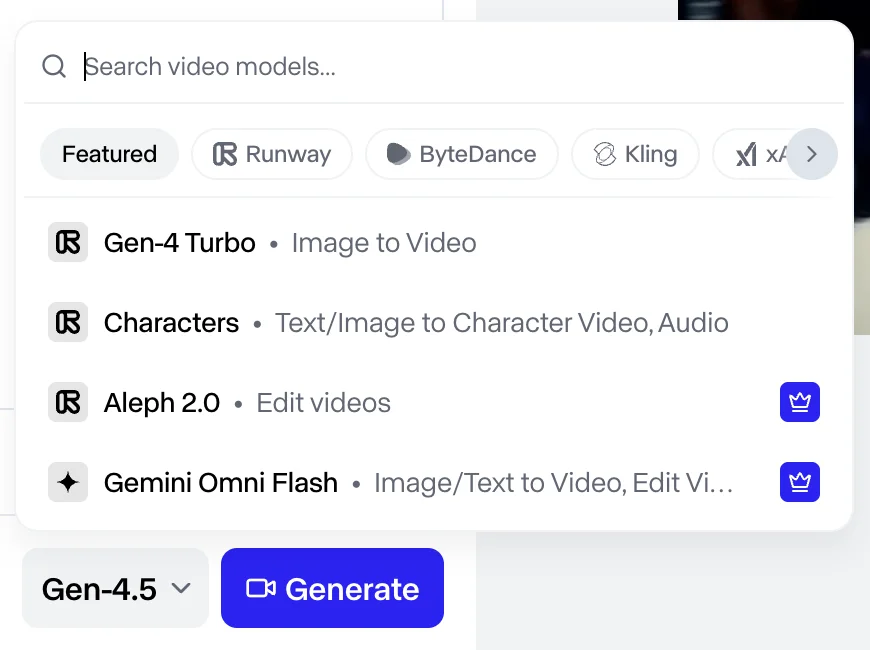
That model dropdown is the clearest picture of what Runway has become. Open it and you find Runway’s own Gen-4.5 and Gen-4 Turbo sitting next to ByteDance’s Seedance, Kling, xAI’s Grok, and Google’s Veo. That makes a subscription part video generator, part hub: you reach several of the field’s strongest models through one login and one pool of credits, and edit whatever they produce without leaving the workspace. Hold that shape in mind and every step below has a reason.
Step 1: Set up your account and read the credits
Getting in is the easy part: sign up at Runway with an email or a Google account, and you land on the free plan with 125 credits already loaded. There is nothing to configure. Runway runs in the browser, and also offers a mobile app, though the full generation and editing workflow is easiest on the web, so that is where this guide works. The thing to actually understand before you generate is what those credits buy, because that is what decides how far a session goes.
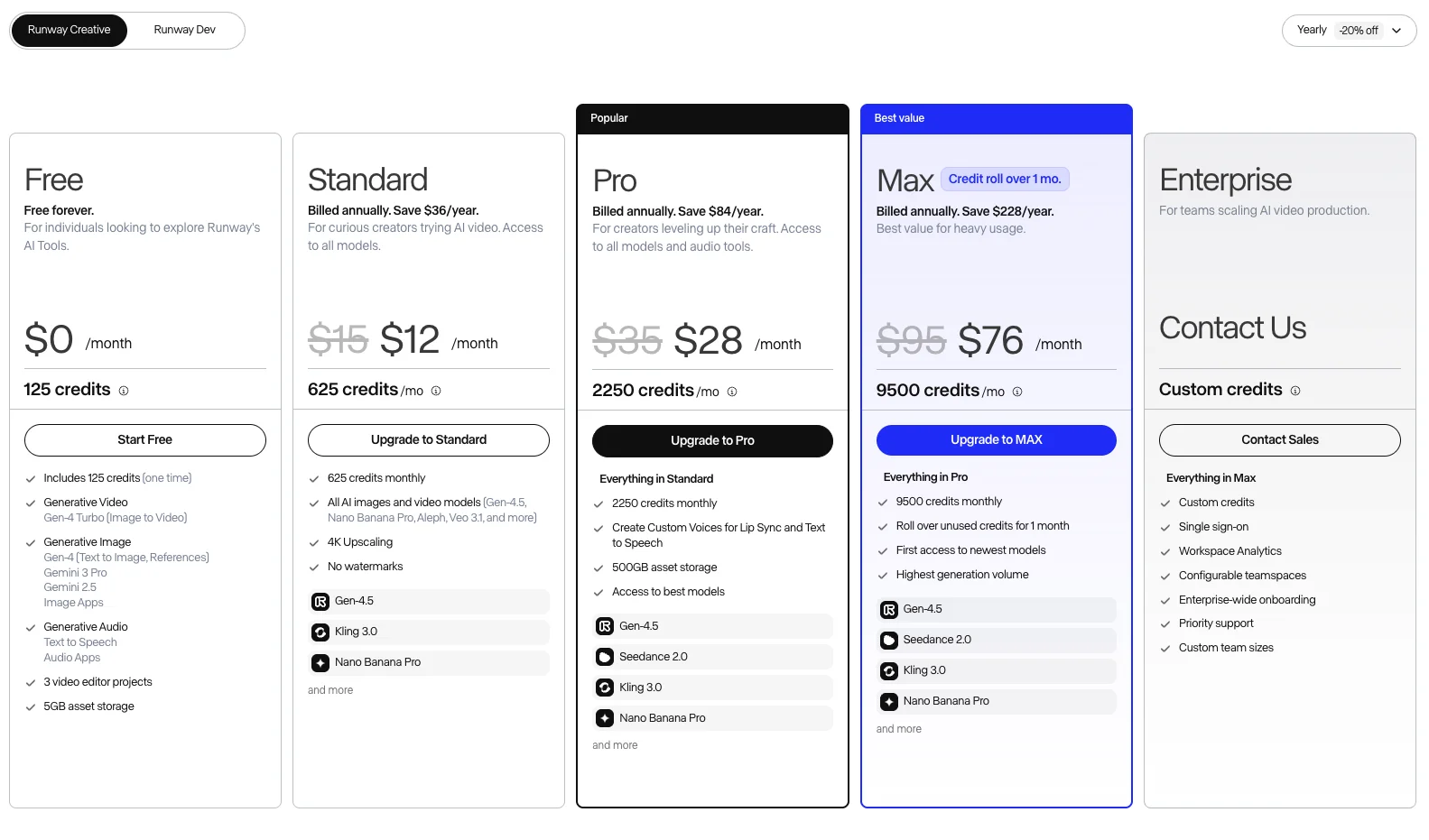
Runway plan pricing (annual and monthly, 2026)
| Plan | Annual (per mo) | Monthly | Credits / mo | What it adds |
|---|---|---|---|---|
| Free | $0 | $0 | 125 (one-time) | Gen-4 Turbo image-to-video, watermarked |
| Standard | $12 | $15 | 625 | All models, 4K upscaling, no watermark |
| Pro | $28 | $35 | 2,250 | More credits, higher limits |
| Max | $76 | $95 | 9,500 | Credit roll-over (one month) |
The two lines that matter most are not the prices. First, the free plan’s 125 credits are a one-time grant, not a monthly allowance, so once they are spent the free tier effectively stops. Second, credits do not roll over on any plan except Max, so on Standard or Pro a quiet month is capacity you simply lose. Read the credit column, not the dollar column.
Step 2: Generate your first clip
On Runway’s free plan the path is fixed, which actually makes it simple: you animate a still. Upload an image or generate one with Runway’s Gen-4 image model for about 8 credits, open the generation panel, and you will see the model dropdown and a prompt box for the motion.
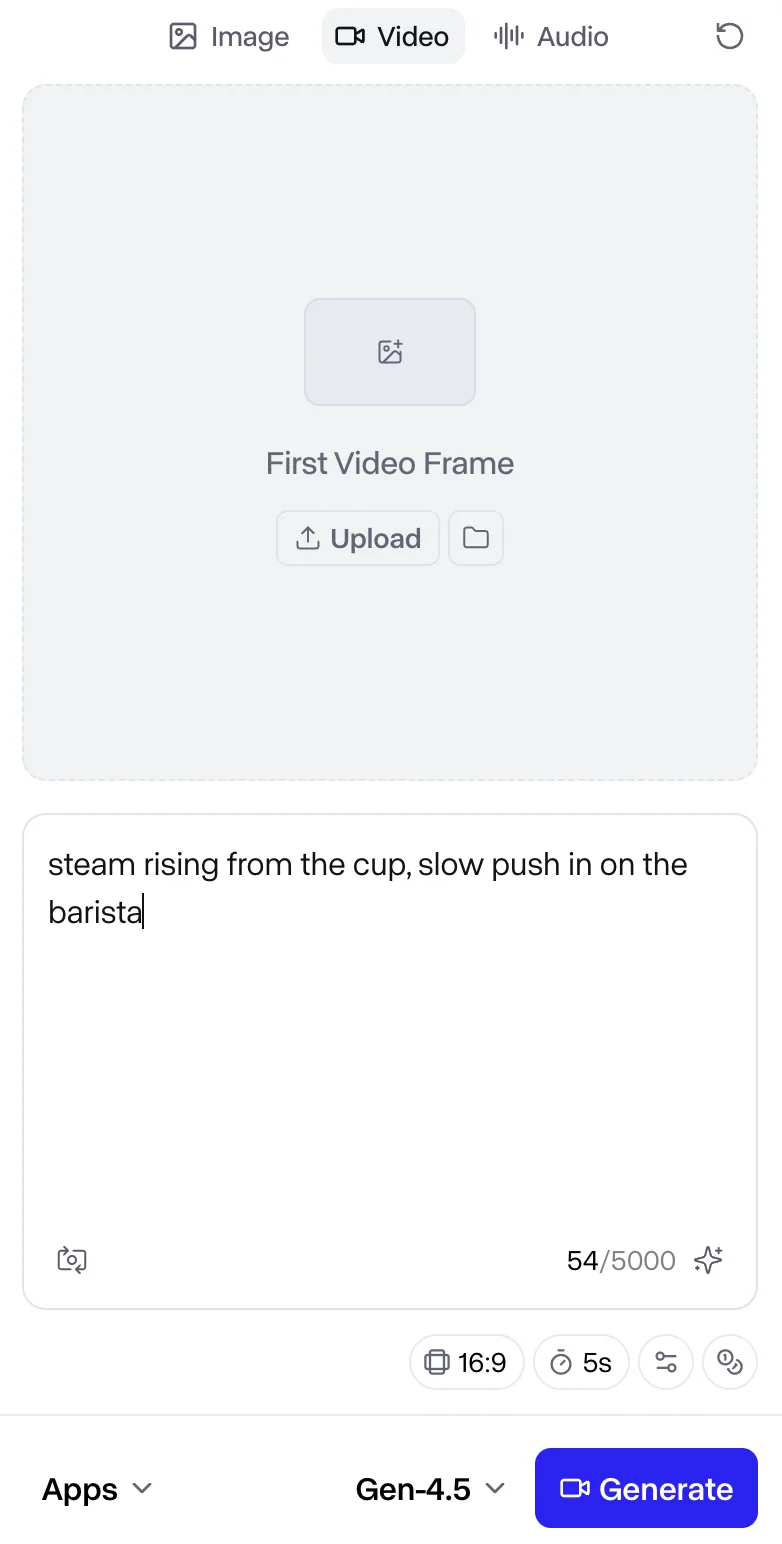
Pick Gen-4 Turbo, describe what should move — “steam rising from the cup, slow push in on the barista” — and generate. A five-second clip is usually done within a couple of minutes and spends 25 credits. Here is the kind of output the free tier produces, watermark and all.
On a paid plan the same panel adds text-to-video: skip the image, describe the whole shot, and let Gen-4.5 generate it. But the free path above is enough to learn the loop and see how the model handles your prompts before you spend anything.
Step 3: Pick the right model for the job
Runway’s model choice is a real decision, not a formality, because the models differ in cost and quality. The rule of thumb is to draft cheap and finish expensive.
Runway model chooser: which to run when
| Model | Use it for | Cost | Plan |
|---|---|---|---|
| Gen-4 Turbo | Drafts, tests, most social clips | ~25 cr / 5s | Free and up |
| Gen-4.5 | Final, best-quality shots | More per clip | Paid |
| Seedance (marketplace) | Cheapest top-tier raw fidelity | Higher per second | Paid |
| Kling (marketplace) | Top raw quality, native 4K | Higher per second | Paid |
| Google Veo (marketplace) | Most cinematic, native audio | Higher per second | Paid |
| Gen-4 (image) | Making a starting still | ~8 cr | Free and up |
Gen-4 Turbo is where drafts belong: it is cheap, fast, and the only model the free tier runs. Move to Gen-4.5 for the shot that ships. And when raw fidelity is the whole point, the best model may be a marketplace one — running Seedance or Veo inside Runway costs more per second than their own routes, but it keeps the generate-then-edit workflow in one place. Match the model to whether the clip is a draft or a deliverable.
Step 4: Edit and revise with Aleph
If you learn one thing in Runway, make it Aleph, because it is the feature the whole tool is built around. Every other generator in this category makes you re-roll a clip that came out almost right, spending credits on a fresh generation and hoping the next one lands. Aleph revises the clip you already have.
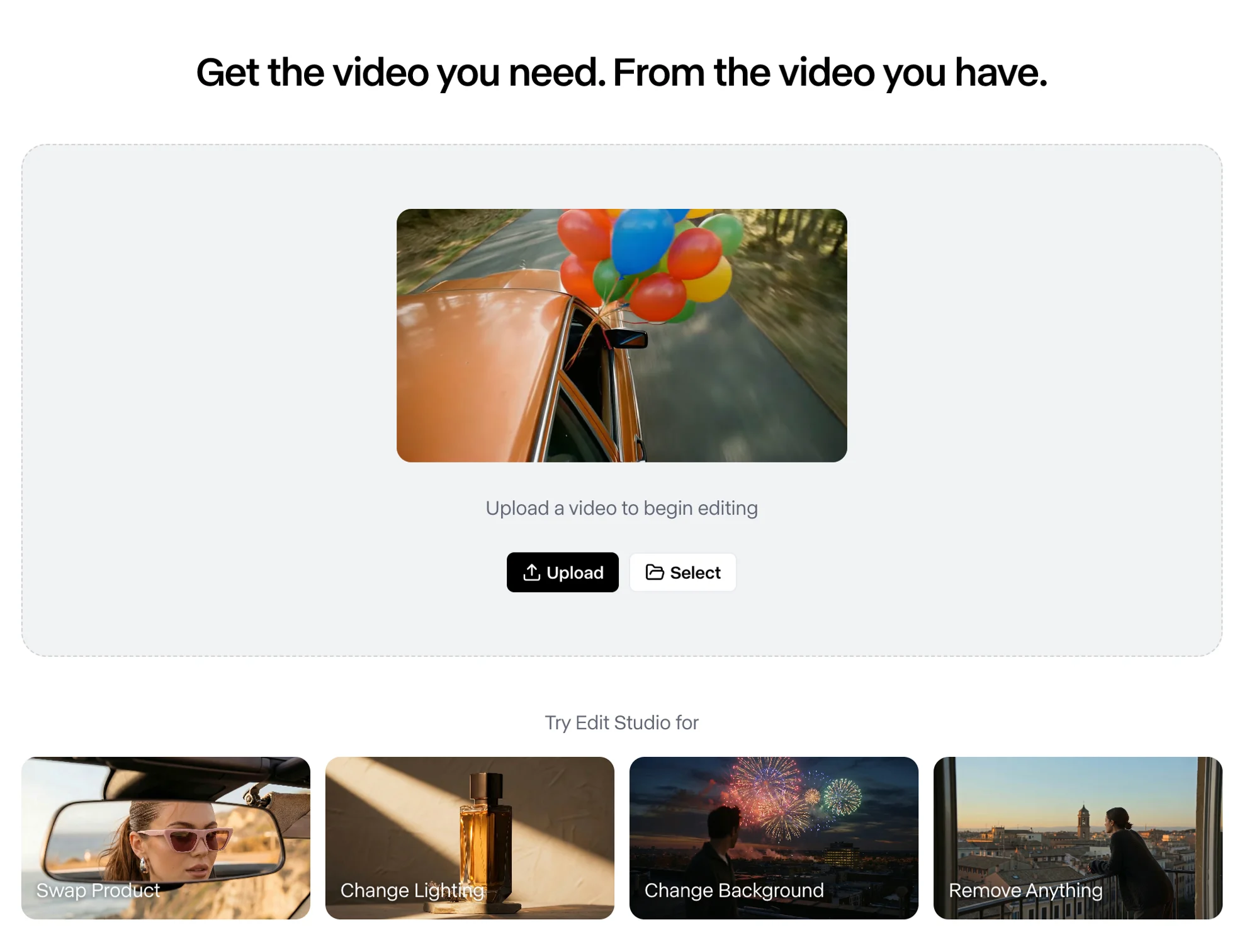
Load a clip, tell Aleph what to change — a different background, dusk instead of noon, a wider camera angle, an object gone — and it edits that footage in place instead of rolling a new generation. That is the move that rescues a clip that came out almost right, which is exactly where most AI video work stalls: close, but not close enough, and no way to nudge it over the line. With 4K upscaling on the paid plans on top, it lets you treat a generation as footage to refine rather than a slot pull to repeat.
Step 5: Run Seedance, Kling, and Veo from the marketplace
The marketplace is Runway’s quietest advantage, and it changes how you should think about the whole tool. From the same model dropdown you used in step 2, you can pick ByteDance’s Seedance, Kling, or Google’s Veo and generate with them on your Runway credits, then edit the result with Aleph in the same workspace.
That matters because Runway’s own Gen-4.5 trails those models on pure fidelity. So the honest workflow for a top-quality shot is often to generate on a marketplace model for the raw clip and edit in Runway for the control. The trade is cost: a hosted model spends more credits per second than running it on its own platform, so the marketplace is about a unified workflow, not the lowest price. Use it when having generation and editing in one place is worth more than saving a few credits.
Step 6: Export your finished video
Once a Runway clip looks right, exporting is the simple part, but the settings differ by plan. On the free tier every export carries a Runway watermark and comes out at the base Gen-4 Turbo resolution, so it is fine for a draft and not for anything you would publish. Paid plans remove the watermark and add 4K upscaling, which renders a sharper final file from the same generation rather than re-charging you to make it again. Runway exports a standard MP4, so the clip drops straight into any editor or upload target without a conversion step.
For anything longer than a single clip, the export is only half the job. Because Runway generates a few seconds at a time, a finished piece is several clips assembled together, either in Runway’s own timeline or in whatever editor you already cut in. And since AI clips are silent unless a model added audio, the sound design almost always happens here, in the edit, not in the generation. Export at the highest resolution your plan allows, keep the source clips, and treat the assembled timeline as the real deliverable.
Getting better results in Runway
A few habits separate a frustrating Runway session from a productive one, and most of them come down to spending credits wisely. Because Gen-4 Turbo is cheap, use it to iterate: generate a rough version, see how the model reads your prompt, and refine the wording before you spend flagship credits on the final shot.
Keep motion prompts specific and physical. Name what moves, the direction, and the speed — “slow push in, steam drifting left” beats a vague “make it cinematic” every time. For any shot where the first frame matters, start from an image so you control the look before adding motion, and describe the motion precisely so only what should move does, rather than letting the whole frame drift.
And when a clip comes out close but not quite right, reach for Aleph to fix it instead of burning credits on a fresh generation. Revising an existing clip is almost always cheaper than re-rolling one from scratch, and it protects the parts that already worked. Those four habits — cheap drafts, precise motion, image-first control, and edit-don’t-re-roll — are most of what stands between a clean workflow and a credit bonfire.
What a one-minute video really costs
The per-clip credit cost is easy to underestimate, so it is worth doing the math on a real project. Clips run a few seconds each, so a finished one-minute video is a dozen or more generations stitched together, plus the re-rolls for prompts that miss.
At 25 credits per five-second Gen-4 Turbo clip, twelve clean clips is 300 credits, and with re-rolls a realistic minute runs closer to 400 or 500 — most of a Standard plan’s 625 monthly credits gone on a single short piece, before you touch the pricier Gen-4.5 or a marketplace model. On the free tier’s 125 credits, you get four or five clips total, which is enough to learn the tool and nothing more. Budget by the finished minute, not the sticker price, and assume real projects burn faster than the clip count suggests.
What to watch out for
Runway’s workflow is the best in the category, but a few things bite if you do not see them coming.
The free tier can’t run the good stuff
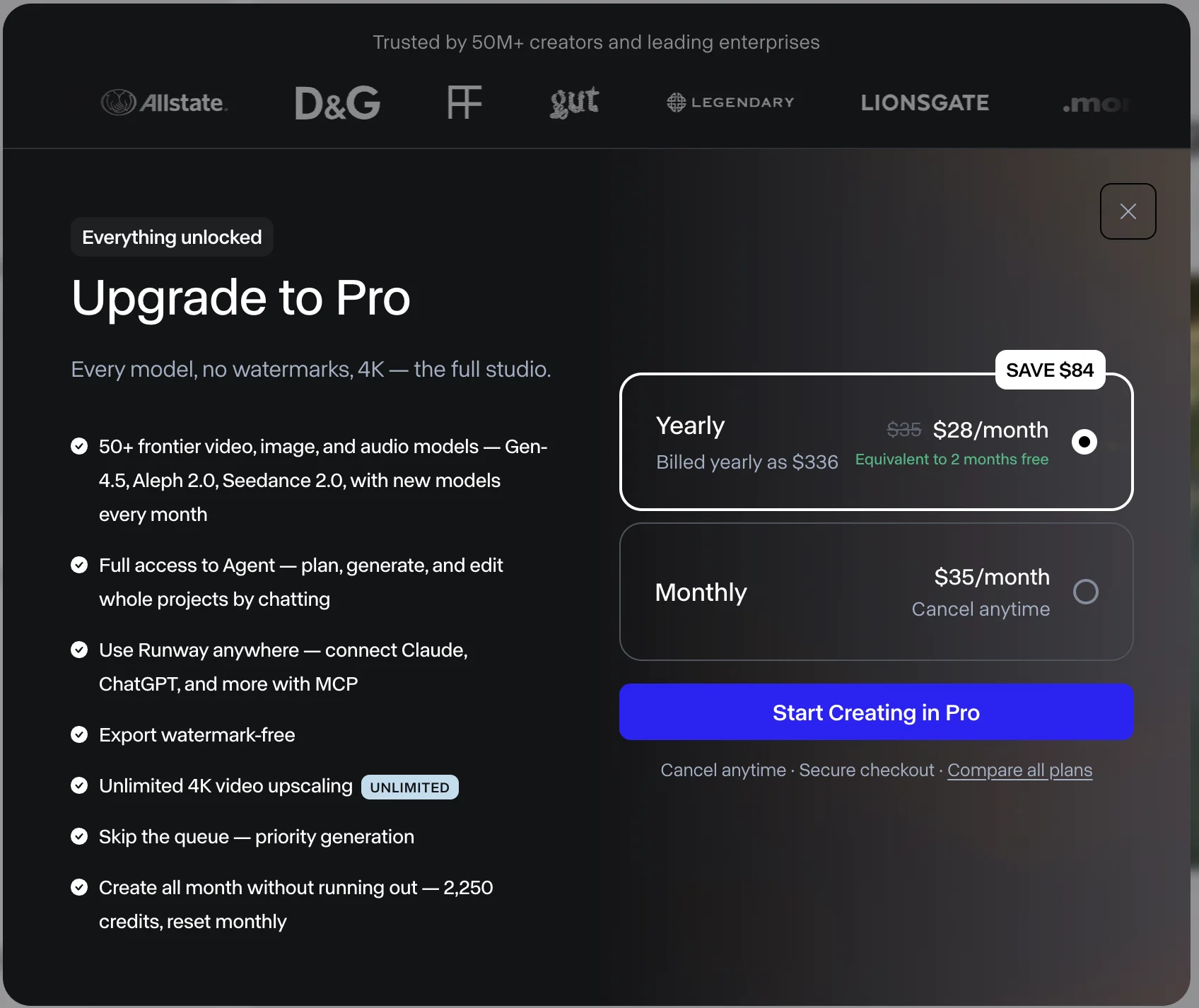
Your 125 free credits buy image-to-video on Gen-4 Turbo and nothing else, and what comes out is watermarked and has no sound. The flagship Gen-4.5 and text-to-video are gated behind an upgrade screen, so the free plan is for touring the interface, not making anything you would publish.
Credits don’t roll over
On every plan except Max, unused monthly credits expire, so a quiet month is wasted money. If your usage is uneven, that matters more than the headline price.
Real projects burn credits faster than they look
Re-rolls, the flagship model, and hosted marketplace models all cost more than the base 25-credit clip, so the clip-per-plan counts are a ceiling you rarely hit in practice.
Raw fidelity trails the leaders
On pure image quality, Gen-4.5 sits behind Google Veo and the leading Chinese models — our own hands-on tests rated Veo 4.6 to Runway’s 4.2, and independent benchmarks agree. Runway is the pick for editing and control, not for winning the single-best-frame contest.
The billing reputation is rough
Runway carries a low Trustpilot score, around 1.2 stars across a few hundred reviews as of mid-2026, with the usual complaints about credits and charges. Nothing unusual for the category, but read the plan terms before you commit.
Which Runway plan you actually need
The right plan follows your workflow, not your enthusiasm.
- Just exploring? Stay free, but treat it as a demo — five clips, watermarked, then it stops.
- Light editing work? Standard at about $12 a month (annual) is the real entry point: all models, no watermark, 4K, and roughly 25 Gen-4 Turbo clips a month.
- Regular production? Pro at $28 a month gives the 2,250 credits a steady output needs.
- High volume, or uneven months? Max at $76 is the only plan with credit roll-over, which is the one that stops wasted months.
- Skip Runway if all you want is the single best-looking clip for free — Google Veo hands you a real watermark-free clip where Runway does not.
For the full per-plan breakdown and the credit math, see our Runway pricing guide.
When Runway isn’t the right tool
Runway is built for editing and control. If that is not your bottleneck, two tools in the same cluster fit better, and both are worth knowing before you commit a subscription.
If you want the best free clip and the cleanest experience, Google Veo is the pick — its free tier is watermark-free and its output leads the category. If you want the cheapest top-tier raw clips and do not need editing, Seedance runs about $0.62 a clip pay-as-you-go. For the wider field, our best Runway alternatives roundup ranks the options by why people leave.
The final word
Using Runway well comes down to one mental shift: it is not a prompt box, it is a studio, and the value is in the second half of the workflow. Generating a clip is the easy part that every tool does. Revising it with Aleph, and running Seedance or Veo from the same account, is what you are actually here for, and it is what justifies the credit-metered price.
Start free to learn the loop, but know that the studio only opens up on a paid plan. If editing and control are your bottleneck, Standard is the honest entry point, and the workflow above is the fastest way to get value from it. For the full hands-on assessment, see our Runway review.
Frequently asked questions
How do you make a video in Runway?
Sign in, upload or generate a starting image, open the generation panel, pick a model, and describe the motion you want — Runway animates the image into a clip. On the free plan that path runs the Gen-4 Turbo model as image-to-video, which is the only route free credits open; a five-second clip spends 25 of your 125 one-time credits. On a paid plan you also get text-to-video, where you skip the image and describe the whole shot from a prompt.
The part that makes Runway different comes after the first generation. Instead of re-rolling a clip that came out almost right, you refine it: the Aleph editing model revises an existing clip from a prompt, changing a background, the weather, or the framing without regenerating the shot. So the real workflow is generate, then revise, rather than generate and hope.
Do you need an image to use Runway?
On Runway's free plan, effectively yes — its free tier only runs image-to-video on the Gen-4 Turbo model, so you start from a still, one you upload or one you make with its Gen-4 image model at about 8 credits, and animate it. The flagship Gen-4.5 model, which does text-to-video from a prompt alone, is walled behind an upgrade screen on the free plan.
On a paid plan you can work either way. Text-to-video lets you describe a shot and generate it with no source image, while image-to-video gives you more control over the starting frame. Most people mix the two: image-to-video when the look of the first frame matters, text-to-video when they just want to see the model's take on a described scene.
What is the best Runway model to use?
Gen-4 Turbo for drafts, Gen-4.5 for finals — it depends on the job. Gen-4.5 is Runway's flagship and the one to use for final, best-quality shots, but it costs the most credits and needs a paid plan. Gen-4 Turbo is the faster, cheaper model — 25 credits for a five-second clip — and it is the only one the free tier runs, so it is where most people start and where drafts should live.
The less obvious answer is that the best model might not be Runway's at all. Its marketplace hosts Seedance, Kling, and Google Veo inside the same subscription, so if you want the sharpest raw fidelity you can run one of those and still edit the result in Runway. Draft on Gen-4 Turbo, reach for Gen-4.5 or a marketplace model for finals, and pick by what the specific shot needs.
How do you edit a video in Runway?
With the Aleph model, which is the feature Runway is really built around. Rather than regenerate a clip from scratch, you load an existing one and describe the change — swap a background, shift the weather, move the camera angle — and Aleph revises that clip instead of making a new one. It turns a shot that came out close into the shot you actually wanted, which is the step most other generators skip entirely.
Aleph handles the finer changes too, reframing a shot, adjusting the light, or removing an object, each one described in words rather than painted by hand. Together with 4K upscaling on the paid plans, that is what makes Runway a studio you edit in rather than a prompt box you re-roll.
Keep reading
Runway vs Pika: The Studio vs the Effects Toy
Runway vs Pika, tested hands-on. They barely compete: Runway is a pro editing studio, Pika a playful one-tap effects tool. Which AI video tool you need.
Runway vs Seedance: The Studio vs the Cheapest Engine
Runway vs Seedance: both score 4.2 but sit at opposite ends — Runway edits footage, Seedance generates it cheap. I tested both; here's which your work needs.
Runway vs Veo 3: Editing Studio vs Cinematic Engine
Runway and Google Veo 3 do different jobs: Veo generates the best clip (4.6), Runway edits it (4.2). I tested both — here's which one your work actually needs.
Runway vs Kling: I Tested Both AI Video Tools
Runway vs Kling: both score 4.2 but win different jobs. I tested both — Runway for editing and predictable billing, Kling for raw quality and audio.