
How to Use Kling AI Without Getting Burned
How to use Kling AI: sign up, generate an elite clip, and manage the credit system that eats a free account. Tested hands-on, billing traps included.
Contents
The fastest way to make a Kling clip
The quickest route to a Kling video is the friendliest part of the whole tool: go to klingai.com, sign up with an email, and you land in a browser studio with a small pool of free credits. Pick the Video 3.0 model, type a prompt, set the length, and generate — a five-second clip comes back in a couple of minutes, photorealistic and with native audio, which is more than most tools give you free.
The reason this guide keeps going is that one flagship clip eats almost your whole free balance, and Kling’s billing has a reputation you want to handle deliberately. The interface is easy; the credit system and the renewal terms are what actually need a walkthrough. Here is the fast version, then the parts that catch people.
Kling fast-path: the quick version
| Step | What you do | Notes |
|---|---|---|
| 1 | Sign up at klingai.com | Free credits to start (mine held 66) |
| 2 | Choose text- or image-to-video | Prompt, or a starting frame |
| 3 | Pick the model and settings | 720p ~20 credits, 1080p ~60 credits |
| 4 | Generate and direct | Multi-Shot, Motion Control, lip-sync |
| 5 | Download and check the licence | Free is watermarked, non-commercial |
The single line to internalise is the third one: a flagship 1080p clip costs about 60 credits, and a free account holds around 66. Getting good value out of Kling is mostly about respecting that math.
How Kling actually works
Two ideas make everything else make sense. The first is that Kling is a real consumer studio, not a developer endpoint. It runs in the browser at klingai.com, and although Kuaishou is a Chinese company, the site is entirely in English and a US creator needs no VPN and no Chinese phone number to sign in. Signing up and generating are genuinely easy; the friction lives entirely in how you pay, not in how you use it, which is the tension our hands-on Kling review is all about. Kling also lists a mobile app, though this guide follows the web studio, where every model and tool is easiest to reach.
The second is that everything is metered in credits, and the credit is the real unit of cost, not the dollar. Every generation spends credits from your balance, a flagship 1080p clip with audio costs about 60 of them, and simpler settings cost far less. The plans you can buy differ mainly in how many credits they grant, so the useful question is never “which plan” but “how many clips will these credits make.”
Kling is also more than a prompt box. Beyond text-to-video and image-to-video, it offers start-and-end-frame control for animating between two images, a Multi-Shot toggle for building a short story across cuts, Motion Control, and an Avatar 2.0 system for lip-synced talking heads. It is a full studio, which is part of why serious creators tolerate the billing. Hold those two ideas — easy to use, metered in credits — and the steps below follow.
Step 1: Sign up and read your credit balance
Getting in is the simple part: go to klingai.com, sign up with an email or a Google account, and you land on a free account with a small pool of credits already loaded. There is nothing to configure. What matters before you generate anything is understanding what those credits buy, because that is what decides how far a free account or a plan actually goes.
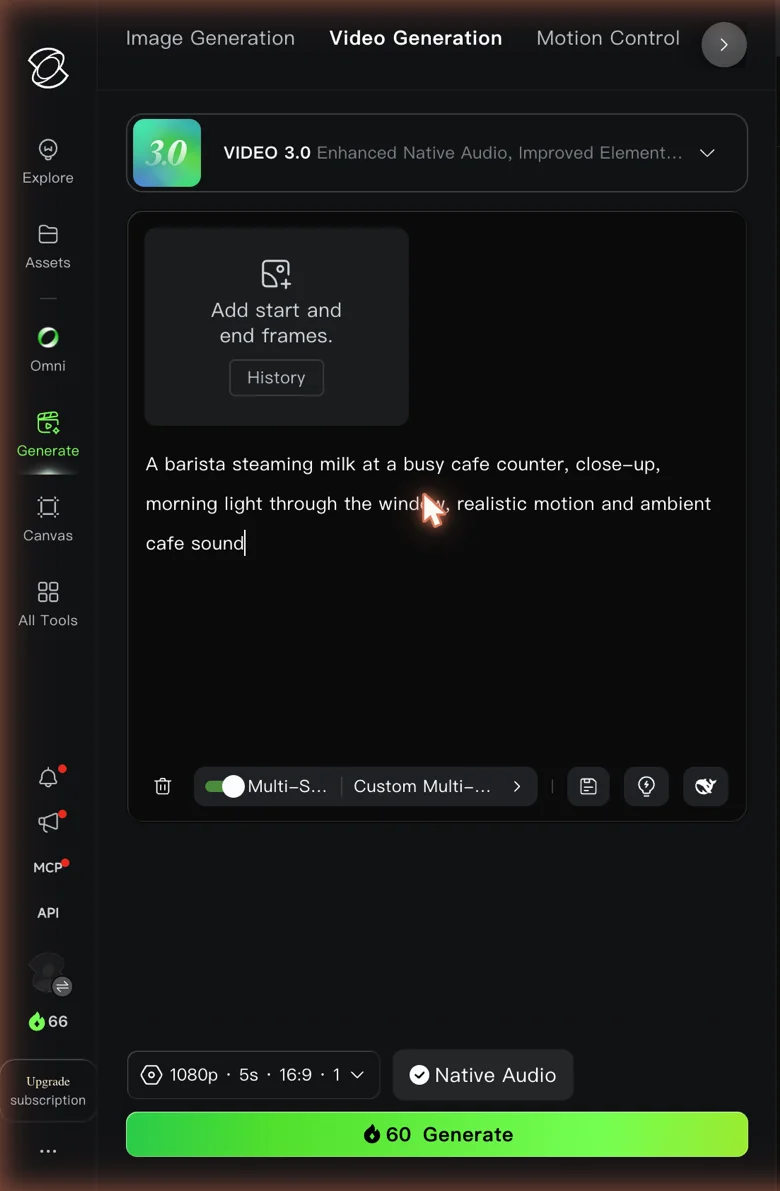
The number that governs everything is the cost per clip. In testing, a top-quality 1080p Video 3.0 clip with native audio cost 60 credits, against a free balance of 66 — so a free account is genuinely one flagship clip and then you are nearly empty. A simpler 720p clip runs closer to 20 credits, which is why the habit that saves you money, covered below, is to draft cheap and finish expensive; our Kling pricing guide works that credit math out tier by tier.
Beyond the starting balance, a free account earns a few daily login credits, but they refill slowly — enough to keep experimenting occasionally, not to run a project. Read the credit balance, not the plan name.
Step 2: Choose text-to-video or image-to-video
Kling gives you two starting points, and choosing the right one saves credits on re-rolls. From a text prompt alone it builds the whole scene, which suits an idea you have not yet pictured. From an uploaded frame — your own photo, or a still made in another tool — it animates a look you have already fixed, so the subject and composition are locked before any motion is added.
Kling input modes: text-to-video vs image-to-video
| Input mode | You provide | Best for |
|---|---|---|
| Text-to-video | A prompt only | Exploring an idea from scratch |
| Image-to-video | A starting frame, or a start and end frame | Control over the look; animating between two images |
The image route has a useful extra: Kling supports start-and-end-frame control, so you can hand it a first and last image and let it fill the motion between them. That is the cleanest way to get a deliberate camera move or a controlled transformation, rather than hoping a text prompt lands it. The rule of thumb: when the look is already decided, hand Kling the image; when you are still hunting for it, let the prompt do the finding.
Step 3: Pick the model and settings
Kling’s model choice is a real cost decision, not a formality, because the flagship and the draft models spend very different numbers of credits. The rule that keeps your balance alive is to draft on the cheap settings and finish on the expensive ones.
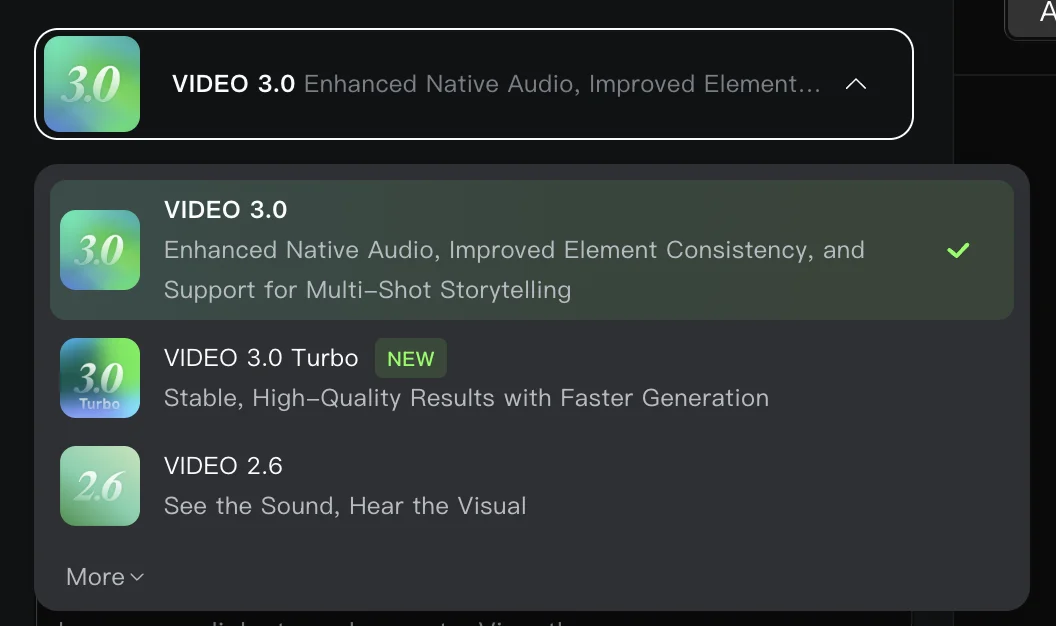
Kling model lineup
| Model | Best for | Notes |
|---|---|---|
| Video 3.0 | Flagship finals | Native 4K, native audio, multi-shot; ~60 credits at 1080p |
| Video 3.0 Turbo | Faster drafts | A little less polish, quicker and more stable |
| Video 2.6 | Older generation | The prior model, still available |
Set the resolution and length alongside the model, because both move the price. A 720p draft on Video 3.0 costs around 20 credits, where the same clip at 1080p costs about 60, and clips run five to ten seconds in 16:9 or vertical. Length is another lever on the bill: a ten-second clip costs proportionally more than a five-second one, so keep shots to five seconds unless a scene genuinely needs longer, and use the vertical option when the clip is bound for TikTok or Reels.
So the workflow that most creators settle on is to explore at 720p, where a clip costs pennies of your balance, and only spend the flagship 60-credit rate on the take that ships. Pick the model by whether the clip is a draft or a deliverable.
Step 4: Generate and direct the shot
Kling’s generation step is a single click once the model and settings are chosen, and the result is where it earns its reputation. My barista prompt on the free Video 3.0 model came back photorealistic, with clean hand motion, realistic steam, and native audio, from a single line of text.
Kling is not only a prompt box, though, and the studio tools are worth reaching for when a shot needs them. The Multi-Shot toggle builds a short story across cuts from one batch, Motion Control directs how things move, and start-and-end-frame control animates between two images.
Avatar 2.0 is the standout for talking-head content: feed it a face and a script, and it produces a lip-synced clip where the mouth matches the words, which pairs naturally with Kling’s native audio to make a finished spoken shot in one place. None of these is essential for a quick clip, but together they are what make Kling feel closer to directing than to rolling a slot machine.
When you are iterating, spend the cheap 720p rate to see how the model reads a prompt, and promote a take to 1080p only once it is the one you want.
Step 5: Download the clip and mind the licence
Downloading a finished Kling clip is straightforward, and it is where the free tier shows its two catches. Free output comes down with a visible KlingAI watermark and a licence that does not permit commercial use, so a free clip is fine for judging the quality but not for publishing on a brand.
Both limits lift on a paid plan: the watermark disappears and the output carries commercial rights. So if a clean, usable clip is what you need — and for any client or brand work it is — budget for at least the Standard plan before you rely on Kling’s output. The download itself is a standard video file that drops into any editor for trimming, sound, or stitching several clips into a longer piece.
Getting better results: how to prompt Kling
Kling rewards two things most tools do not, so prompt for them directly. The first is sound. Because Video 3.0 generates native audio in the same pass as the picture, you can describe what a scene should sound like — the ambient noise, a specific action’s sound, even dialogue for a lip-synced avatar — and Kling will attempt it. A prompt that names the audio gets a fuller clip than one that only describes the image.
The second is motion. Kling’s physics-aware model handles movement better than most, so a specific, physical motion prompt pays off: spell out the movement, its direction, and its force, as in “steam rising fast off the milk while the barista’s wrist rotates the jug,” instead of a flat “make it lively.” One clear action per five-second clip reads cleaner than several crammed together.
For a sequence rather than a single shot, reach for the Multi-Shot toggle instead of stitching separate generations, because it holds characters and style consistent across cuts in a way re-rolled clips do not. And since a 720p draft costs only about 20 credits, do that reading-and-adjusting on the cheap tier, then spend the flagship 60-credit rate only on the take you keep.
What a month of Kling clips really costs
Kling’s per-clip credit pricing only shows its real weight when you cost a whole project. Since clips top out at five to ten seconds, a one-minute video is eight to twelve separate generations stitched together, before the re-rolls for prompts that miss.
At the flagship 60-credit rate, one minute of 1080p video runs around 600 to 700 credits — most of a Standard plan’s 660-credit month gone on a single short piece, before any re-rolls. Draft that same minute at 720p, where a clip costs about 20 credits, and it fits comfortably inside the plan with room to iterate.
Put numbers on it: a minute drafted entirely at 720p runs roughly 160 to 240 credits against 600 to 700 at 1080p, so drafting cheap turns a single flagship minute a month into three or four minutes of finished work on the same Standard plan. That gap is the whole reason to draft cheap: the flagship model is superb, but it is a finishing tool, not a drafting one, and treating it that way is how a Standard plan lasts a month instead of a week.
What to watch out for with Kling
Kling’s output is a category leader, and its billing is the worst-reputed in the category. These are the traps to know before you subscribe.
The billing reputation is real
Kling holds a 1.3-star Trustpilot rating across hundreds of reviews, built on charges after cancellation, no refunds, and slow support. The video is not the problem; the way you are charged for it is. Go in expecting to manage the subscription carefully.
Credits expire
Kling’s credits carry a hard expiry date — I saw it on my free balance — so credits you have not spent can lapse and disappear. Plan your generating around the expiry rather than assuming credits bank indefinitely.

The headline price is a first-month promo
The cheap sticker applies only to your first subscription. Standard is $6.99 the first month and about $8.80 on renewal, and the higher tiers jump further, so budget from the renewal figure, not the promo.
Free output is watermarked and non-commercial
A free clip carries a visible KlingAI watermark and cannot be used commercially. It is a demo of the quality, not usable brand output, so do not build a deliverable on the free tier.
Cancel deliberately
Given the charge-after-cancellation complaints, if you subscribe, cancel through the account settings well ahead of the renewal date and confirm it went through. Treat that as part of using Kling, not an afterthought.
Generations can queue or be refused
At busy times a generation joins a queue rather than returning instantly, so a clip that stalls is usually queue time, not a broken account — give it a few minutes before re-rolling and spending more credits. And as with most video generators, expect content moderation to reject some prompts; if a generation fails, confirm it did not spend credits before you try again.
Which Kling plan you actually need
The right plan follows how many flagship clips you actually finish a month.
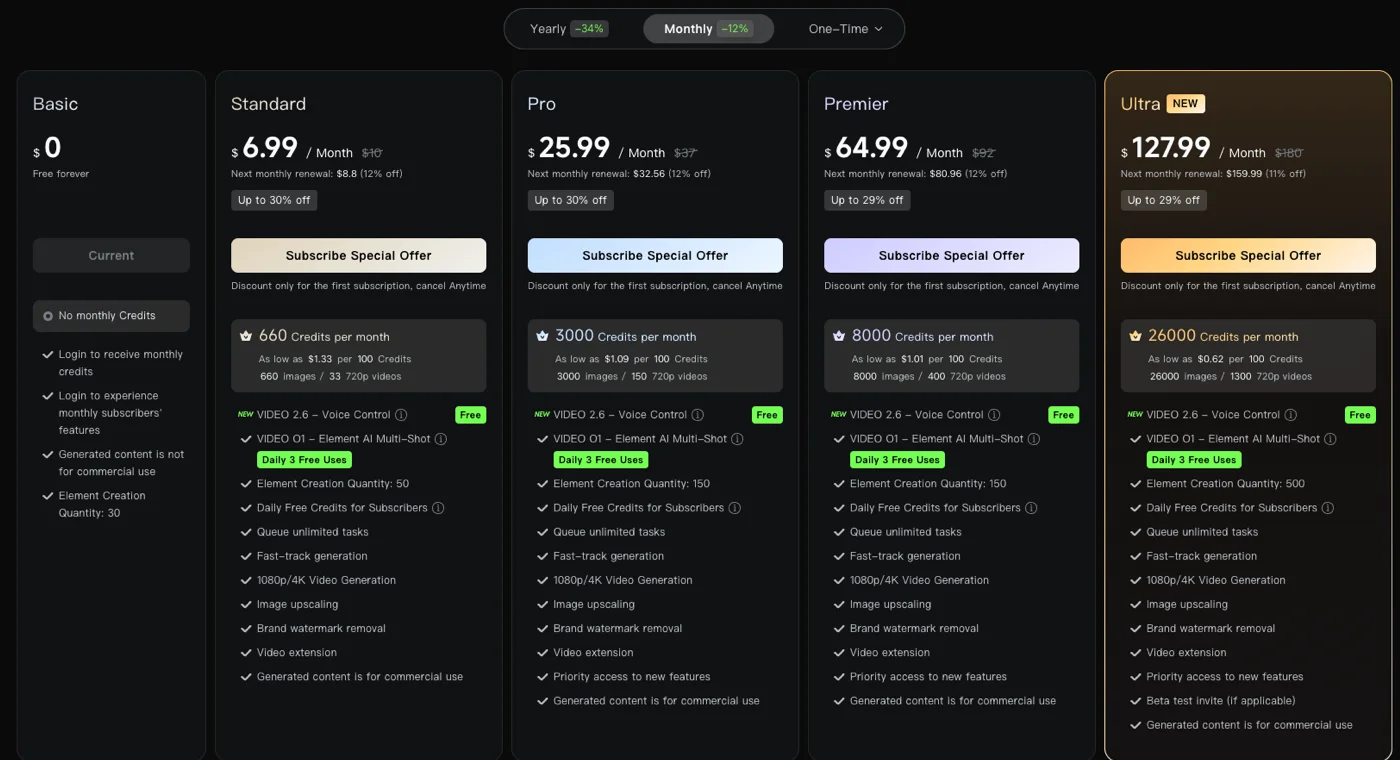
Kling plans and what the credits buy (flagship 1080p clips at ~60 credits)
| Plan | First month | Renewal | Credits / mo | Flagship clips |
|---|---|---|---|---|
| Free (Basic) | $0 | $0 | daily login only (~66 to start) | ~1, then done |
| Standard | $6.99 | ~$8.80 | 660 | ~11 |
| Pro | $25.99 | ~$33 | 3,000 | ~50 |
| Premier | $64.99 | ~$81 | 8,000 | ~133 |
| Ultra | $127.99 | $159.99 | 26,000 | ~433 |
- Just trying it? Stay free, but know it is one flagship clip — judge the quality, then decide.
- Occasional finished clips? Standard at $6.99 (about $8.80 on renewal) gives 660 credits, roughly eleven flagship clips or far more 720p drafts.
- Regular production? Pro at $25.99 for 3,000 credits covers around fifty flagship clips a month.
- High volume or client work? Premier or Ultra, where the credit pool stops being the bottleneck.
- Skip Kling if its billing reputation is a dealbreaker — Google Veo gives you a watermark-free free clip and clean, trusted billing, even if Kling often beats it on raw quality.
For the full per-tier credit math, see our Kling AI pricing guide.
When Kling isn’t the right tool
Kling wins on raw output, and the price of admission is a credit system and a billing reputation you have to keep an eye on. When that bargain does not suit you, three other tools in the cluster each handle a piece of the job better.
If you want elite quality with clean, trusted billing and a watermark-free free clip, Google Veo is the safer pick — it costs more per premium clip but spares you the credit anxiety. If you want the cheapest top-tier raw clips and can handle a developer platform, Seedance runs about $0.62 a clip pay-as-you-go. And if your real need is editing rather than generation, Runway is a studio built around revising a shot. Our best Kling AI alternatives roundup ranks the wider field.
The final word
Using Kling well is really two skills: generating, which is easy and rewarding, and paying, which needs care. The generating part is genuinely a pleasure — some of the best AI video anywhere comes out of a browser tab and a single prompt, with sound. The paying part is where the tool has earned its reputation, so draft at 720p to stretch your credits, reserve the flagship model for finals, and cancel deliberately if you subscribe.
Do that, and Kling gives you category-leading video for a low cost per clip. Ignore it, and the credit expiry and the renewal jump are what turn a great tool into a bad month. For the full hands-on verdict, including the trust issues in depth, see our Kling AI review.
Frequently asked questions
How do you use Kling AI?
You use Kling in the browser at klingai.com — sign up with an email, and despite the Chinese origin the site is fully in English and needs no VPN or Chinese phone number. A free account lands with a small pool of credits, and from there you pick a model, type a prompt or upload a starting image, set the length and aspect ratio, and generate a clip.
The part that catches people is the credit system. Every generation spends credits, and a flagship 1080p Video 3.0 clip with audio cost 60 of my 66 free credits in testing — so a free account is really one great clip and then you are nearly out. Draft on the cheaper 720p setting, which costs far less, and reserve the flagship model for the shots you actually keep. Managing credits, not learning the interface, is the real skill with Kling.
Is Kling AI free to use?
Kling has a free tier, but it works as a trial, not a workflow. A new account holds a small credit pool — mine was 66 — and one flagship 1080p clip with audio spent 60 of them, so you get a single strong clip before the balance is gone. Those credits also come with an expiry, and the daily top-up trickles in too slowly to lean on.
Two more limits apply to free output: a visible KlingAI watermark and a non-commercial licence, so it is fine for judging the model and not for publishing. To drop both and get a workable allowance, you move to a paid plan, which starts at $6.99 a month for 660 credits — roughly eleven flagship clips.
How much does Kling AI cost per video?
The plan price is only half the story, because Kling meters everything in credits and the clip is what spends them. A flagship 1080p Video 3.0 clip with native audio cost 60 credits in testing, while a simpler 720p clip runs closer to 20. So on the entry Standard plan's 660 credits a month, you get about eleven flagship clips, or many more if you draft at 720p.
The plans start at $6.99 a month for Standard and climb through Pro ($25.99), Premier ($64.99), and Ultra ($127.99), with proportionally more credits at each tier. The catch is that those are first-month promo prices — Standard renews at about $8.80 — so read the renewal figure, not the headline, before you commit. Price Kling by the credits per clip, not the monthly total.
Is Kling AI safe to use?
Kling is safe to use and the video is genuinely excellent; the caution belongs on the billing. It sits at 1.3 stars on Trustpilot across hundreds of reviews, and nearly every complaint is financial rather than about quality — people report being billed after cancelling, unused credits expiring, refunds refused, and support going quiet. The tool works and the output is elite, but that billing record is the worst in the category.
So use it deliberately. Try it free to judge the quality, and if you subscribe, write down the renewal date, cancel through account settings well ahead of it, and check the statement afterward. The credit expiry and the renewal price jump are real, because plenty of users have run into them. Handled with care, Kling is a top-tier generator; handled casually, the billing is what bites.
Keep reading
Kling vs Sora: One Shut Down, the Other Didn't
OpenAI shut Sora down, so Kling vs Sora has one answer: Kling — the raw-quality heir, if you can handle its billing. The honest comparison and what to use now.
Kling vs Veo: I Tested Both AI Video Models
Kling and Google Veo are the two best AI video models. I tested both: Veo wins overall (4.6), but Kling does native 4K and is far cheaper per top clip.
Kling AI Pricing: What a Clip Really Costs
Kling AI runs from $0 to $128 a month, but the real cost is credits per clip — a 1080p video is 60 credits. Here's the full pricing math, hands-on.
Kling AI Review: The Best AI Video, and a Billing Problem
Kling AI makes some of the best AI video anywhere, but one free clip cost 60 of my 66 credits. My hands-on take on quality, credits, and trust issues.